macOS · Windows

Everything your MSX-Pico needs, in one app.

Prepare the SD card, build your ROM catalog, update the cartridge firmware and flash it all in one go. No command line, no guessing which cluster size to pick, no wondering whether it worked.

Version
0.1.0-alpha.2
Released
2026-07-13
Size
114.7 MB
Price
Free
MSX-Pico Studio on macOS, at the end of a Prepare SD run: 'SD card prepared successfully', with the log and the verification panel open.
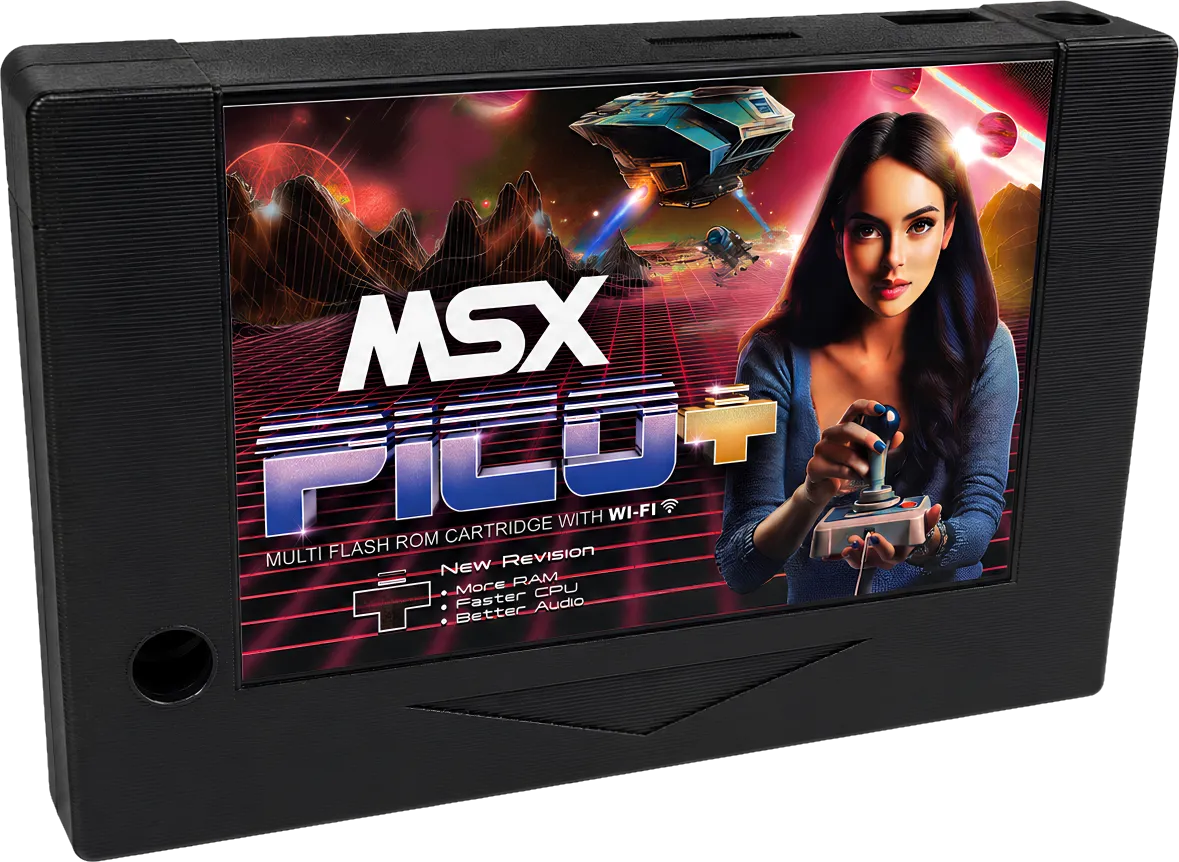
An MSX-Pico+ cartridge.

What it does

Four jobs, one app — and a place to talk about it.

Prepare the SD card without touching a terminal

Pick the card, pick the plan, confirm. Studio partitions and formats it with the right filesystem and cluster size, copies the default content, and then verifies the result — partition size, filesystem type, cluster size, label — and tells you what it checked. Nothing is written before you have read a plain-language summary and typed a confirmation.
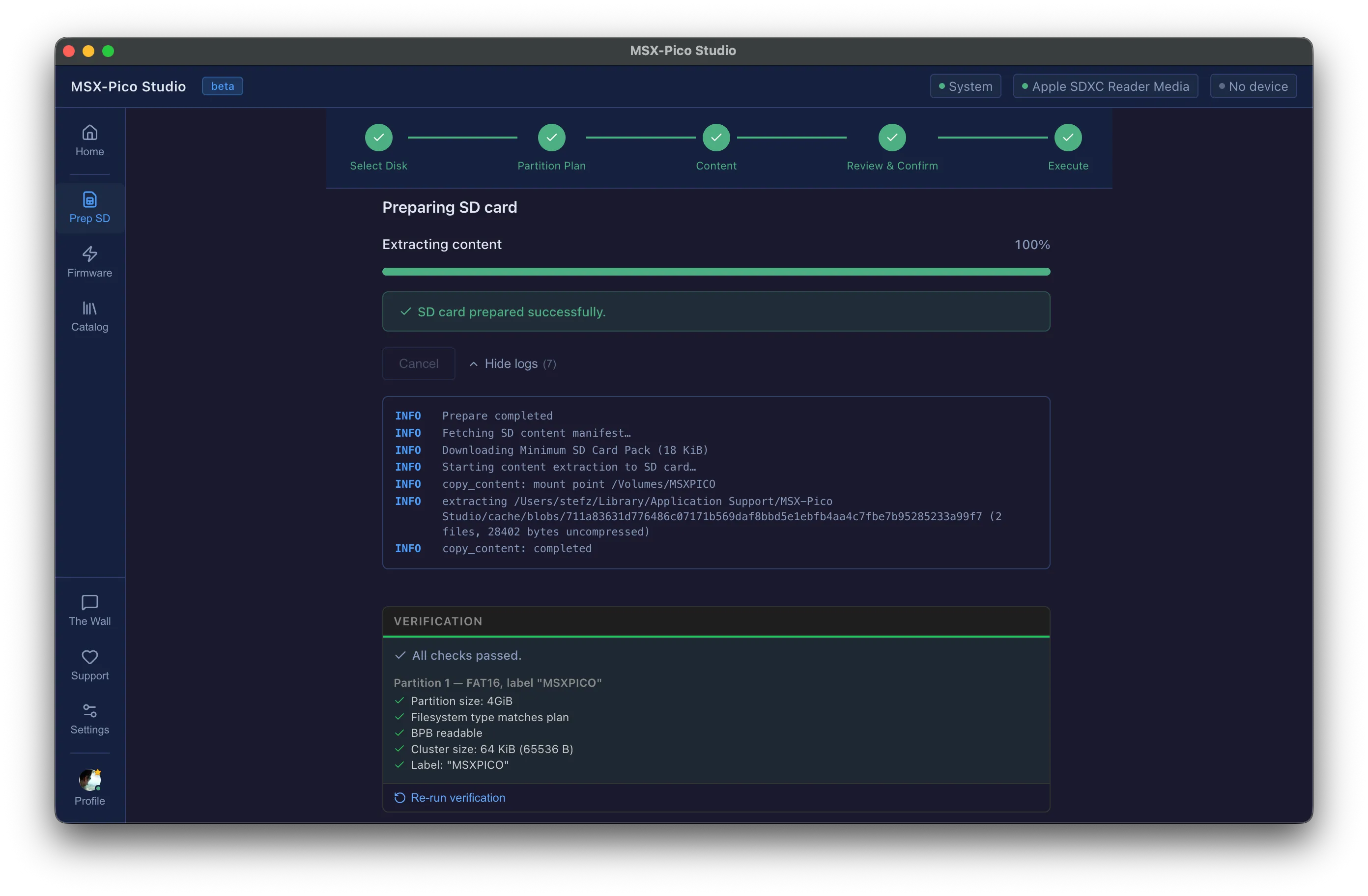
The Prepare SD wizard showing a finished run: 'SD card prepared successfully' and a verification panel listing every check that passed.

Build your catalog, ROM by ROM

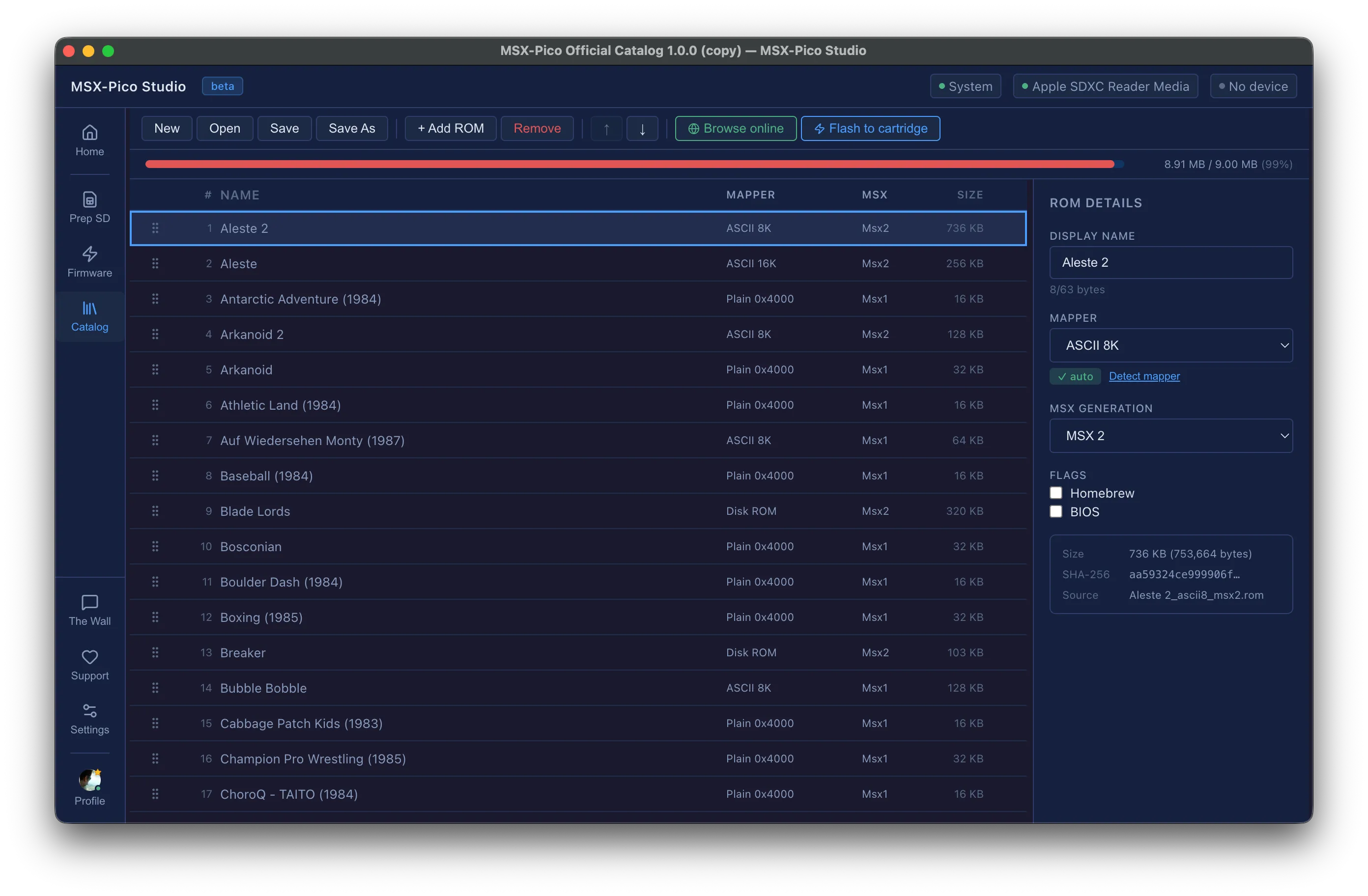
Drop your ROMs in, reorder them, and let Studio detect the mapper and the MSX generation for you — or override it yourself when you know better. The size bar tells you exactly how much of the cartridge you have left before you run out of room.

The Catalog editor with a list of ROMs, each showing its mapper, MSX generation and size, and a details panel on the right.

Update the firmware from a trusted source

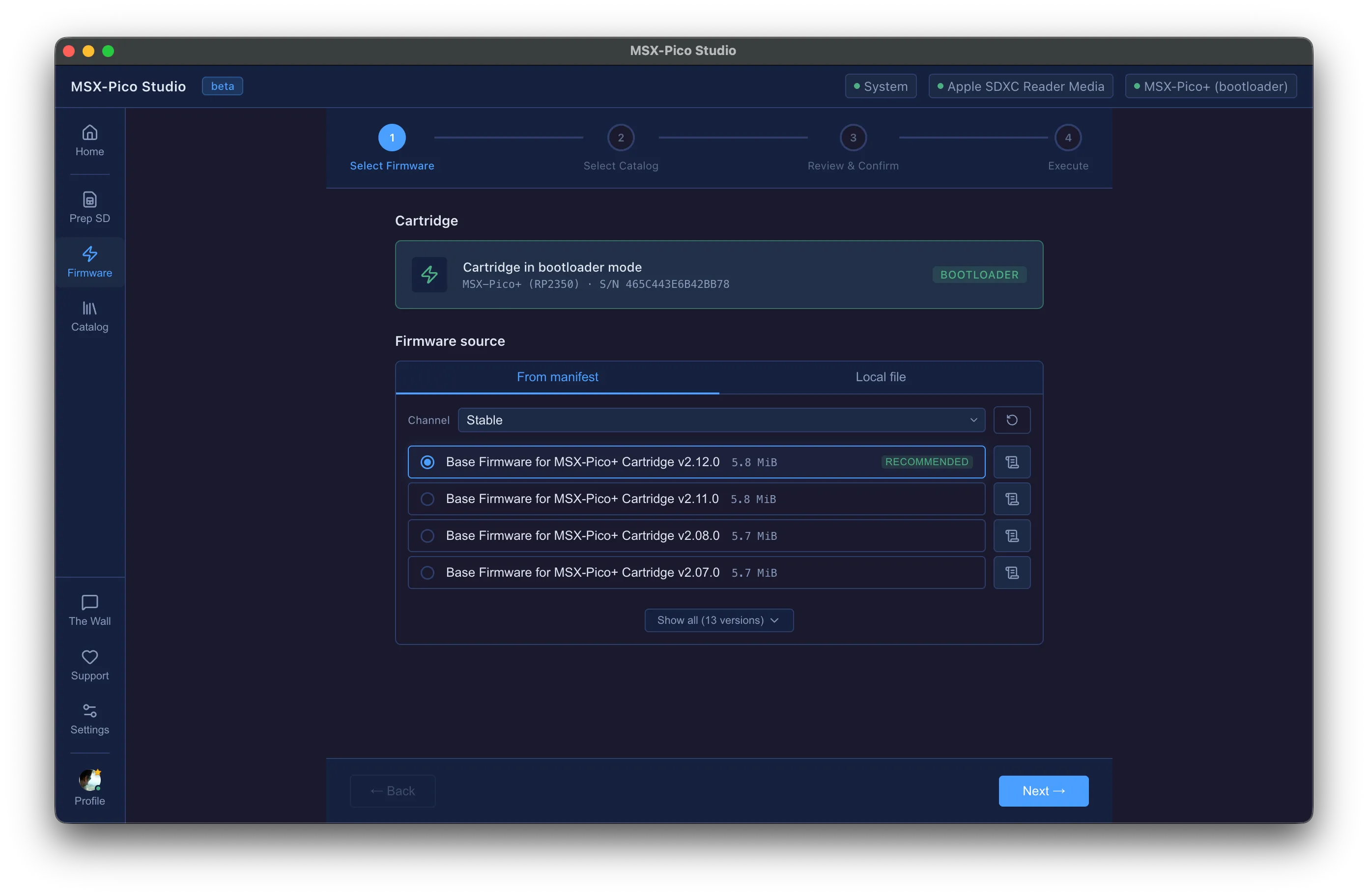
Studio finds the cartridge in bootloader mode, shows you which firmware versions exist and which one is recommended, and downloads it from the official manifest. You can also point it at a local file when you are building your own.

The Firmware wizard with the cartridge detected in bootloader mode and a list of available firmware versions.

Firmware and catalog, flashed as one

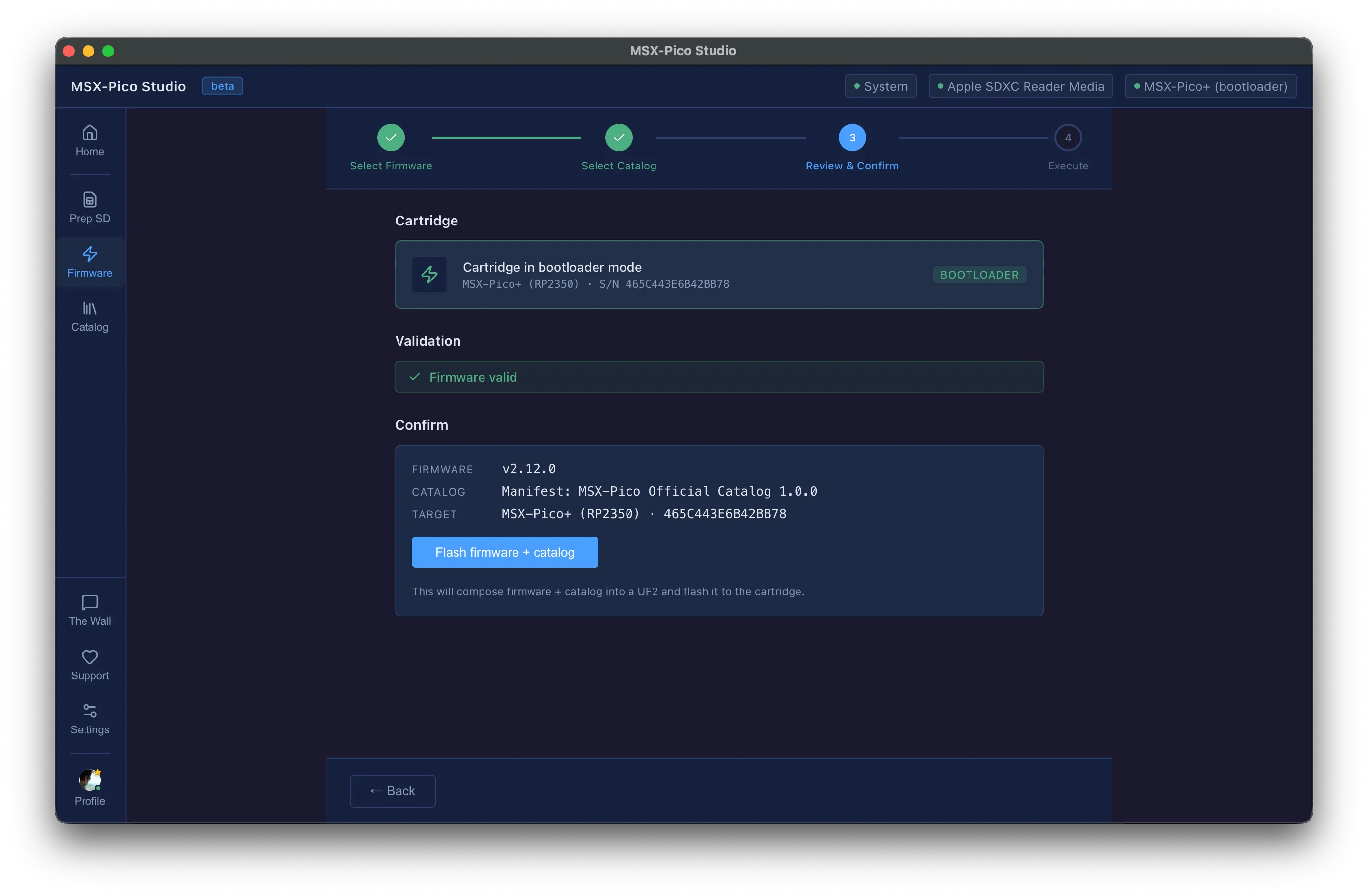
The catalog never goes to the cartridge on its own. Studio composes firmware and catalog into a single UF2, validates it before writing anything, shows you exactly what is about to be flashed and to which cartridge, and only then does it write.

The Review & Confirm step showing 'Firmware valid' and a summary of the firmware, catalog and target cartridge before flashing.

The Wall

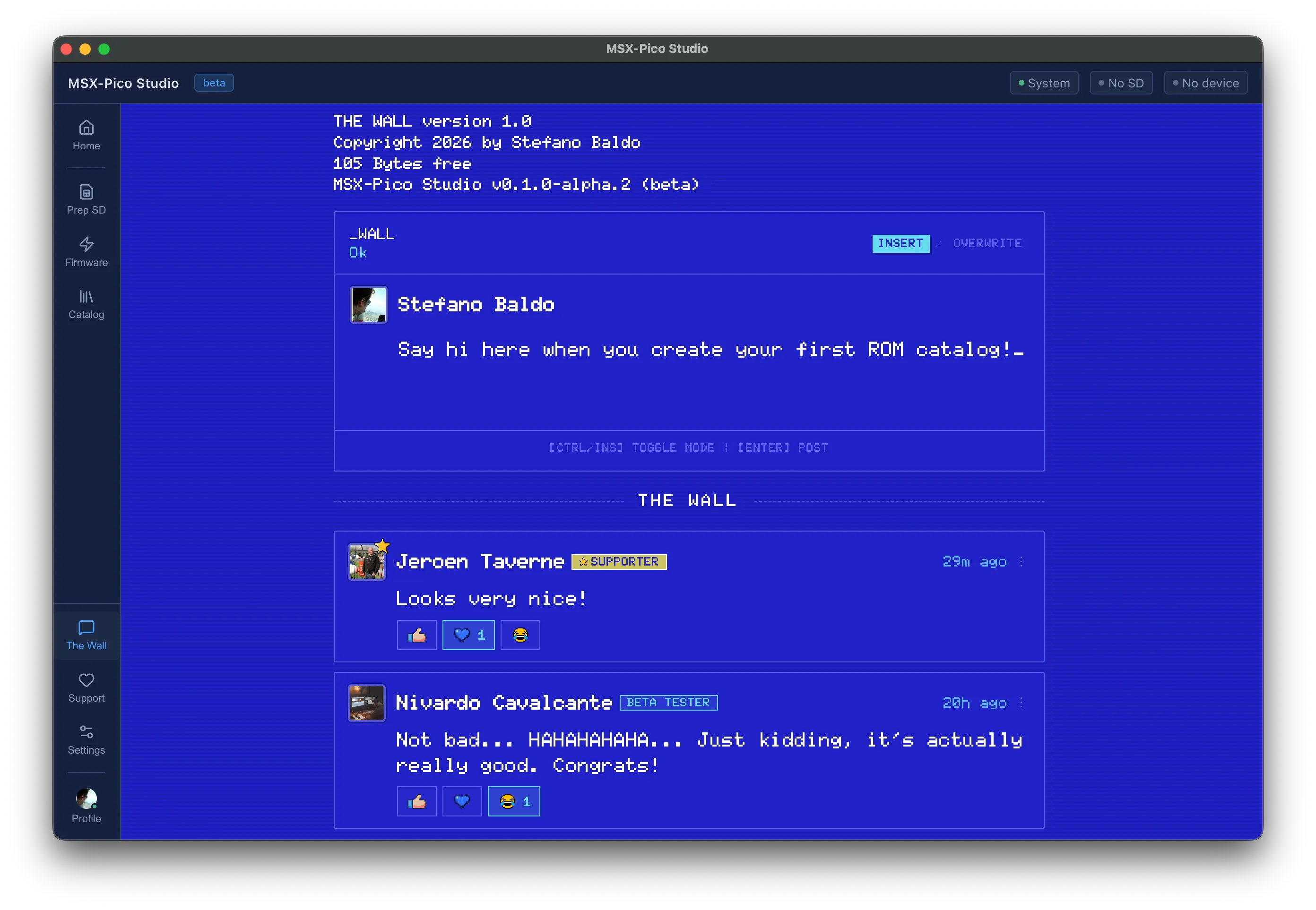
A message board that thinks it is running on an MSX. Say hello, show what you built, complain about mappers. It is the closest thing this project has to a clubhouse.

The Wall: a community message board rendered like an MSX-BASIC screen, with posts and reactions.

Download

Free to download, free to use.

Pick your platform. Every build is published with its size and its SHA-256, so you can check that the file you got is the file we built.

0.1.0-alpha.2 2026-07-13

Installing

It takes a minute. On Windows, it takes a minute and one warning.

macOS

The macOS build is signed and notarized by Apple. It opens like any other app — no warnings, no right-click trick, nothing to work around.

  1. Download the .dmg and open it.
  2. Drag MSX-Pico Studio into your Applications folder.
  3. Open it from Applications. That's it.

Windows

  1. Download the .zip.
  2. Right-click it and choose Extract All. Inside you'll find the installer, a single .exe.
  3. Run the .exe.
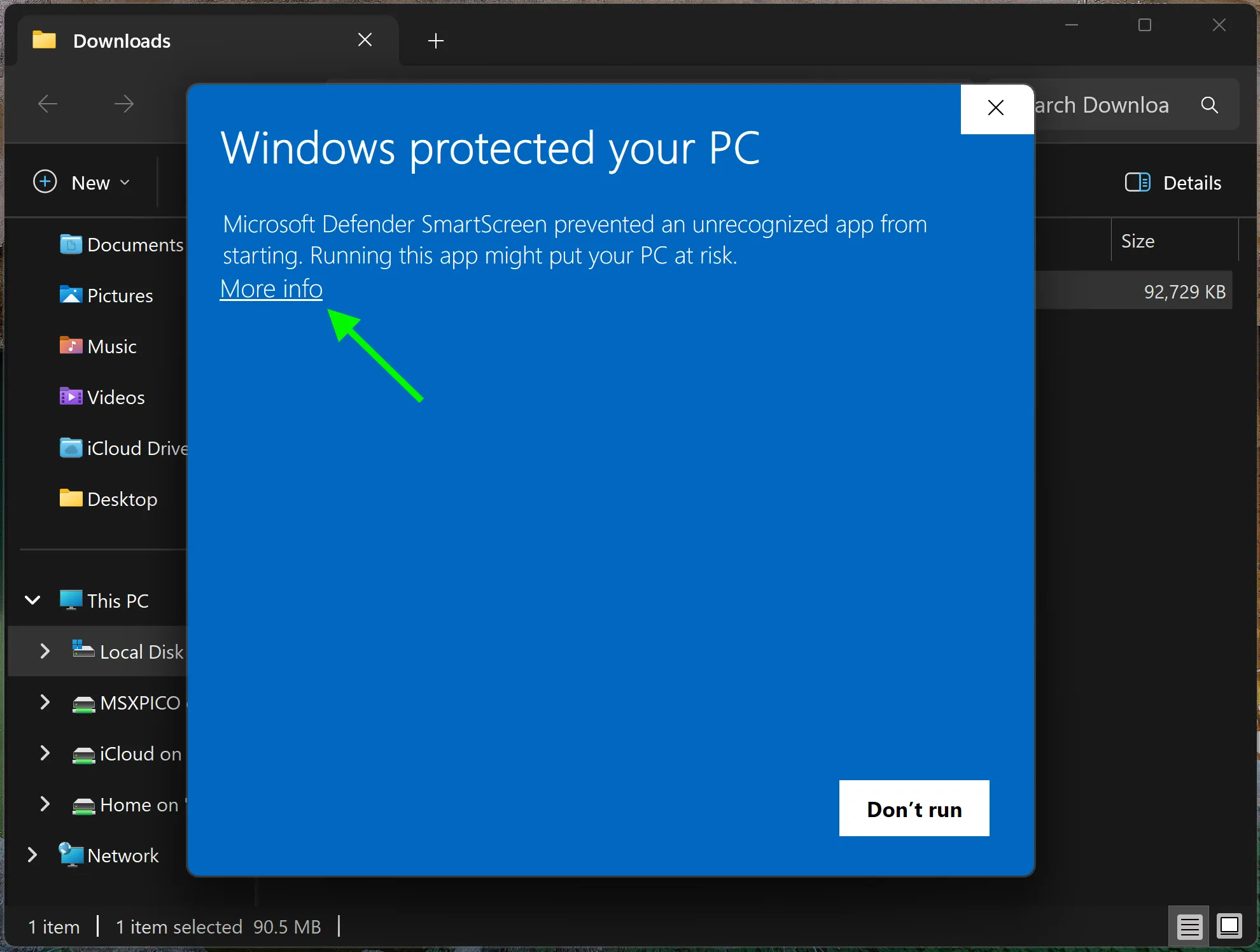
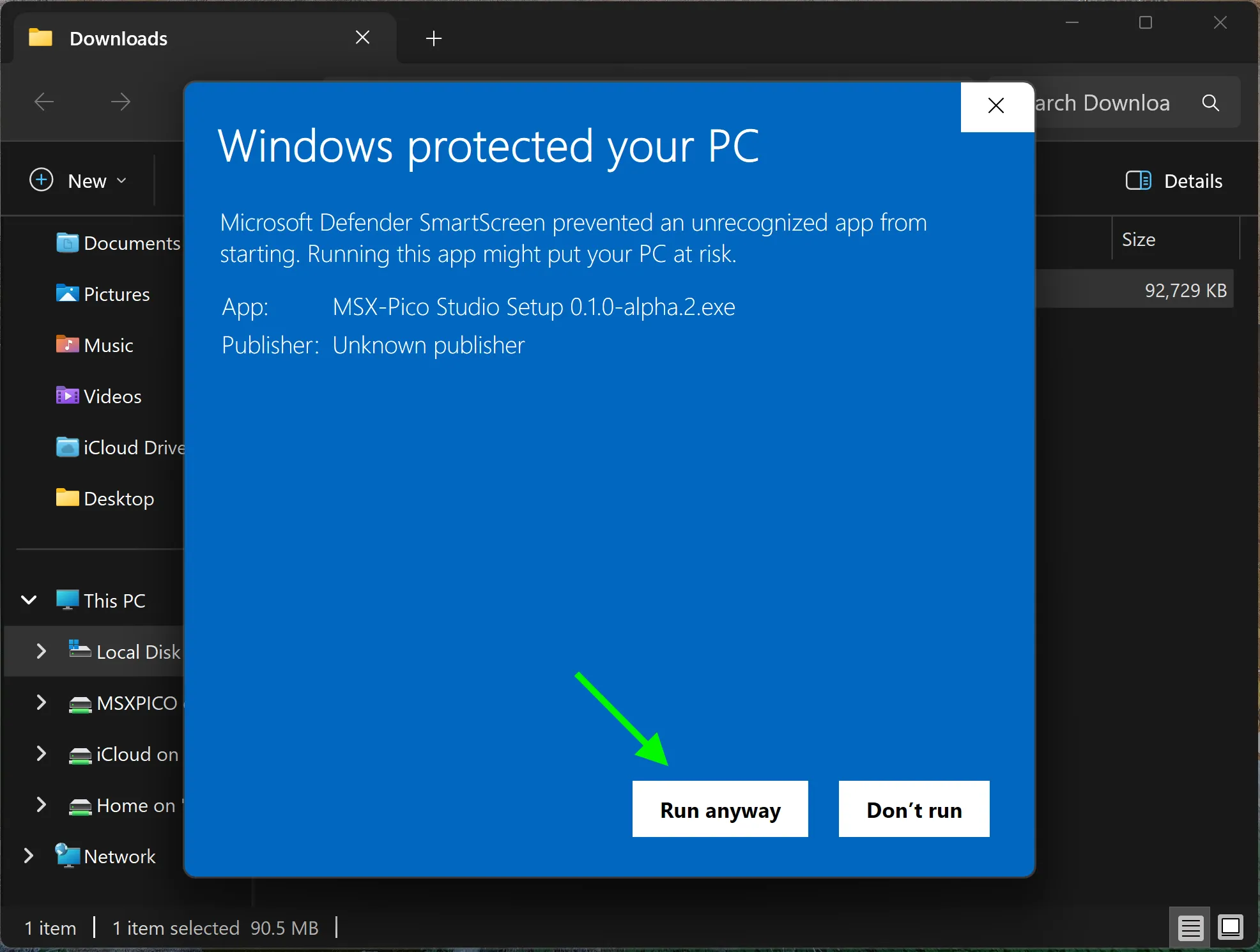
  4. Windows SmartScreen will step in with “Windows protected your PC”. Click More info, then Run anyway. This is the part everyone gets stuck on — the screenshots below show exactly which button to press.
    The Windows SmartScreen warning: “Windows protected your PC”, with the More info link visible.
    The same SmartScreen dialog after clicking More info, with the Run anyway button revealed.
  5. The installer runs without asking for administrator rights and installs into your user folder. Launch MSX-Pico Studio from the Start menu.

Why does Windows do this? Because the app is not code-signed. A certificate that satisfies SmartScreen from day one costs several hundred dollars a year, which is hard to justify for a project this size. SmartScreen is not telling you the app is malware — it is telling you it does not recognize the publisher, which is true. If you would rather verify what you downloaded than take our word for it, the SHA-256 of every file is published: run Get-FileHash in PowerShell and compare.

Check the SHA-256 of your download

Requirements

What you need

  • An MSX-Pico or MSX-Pico+ cartridge.
  • macOS 12 (Monterey) or later — Apple Silicon or Intel.
  • Windows 10 or 11, 64-bit.
  • An SD card reader, and a USB cable that carries data (some charging cables do not).
  • A free Google account to sign in.

FAQ

Questions

Why do I need to sign in with Google?

Sign-in is what lets Studio give you the official firmware and catalog manifests, keep The Wall from filling up with spam, and tell you when there is an update. Studio never sees your Google password — the sign-in happens on Google's own page, and Studio only receives your name, e-mail and profile picture.

Is it free?

Yes. No trial, no license key, no locked features. If it earns its keep, the app has a Support the Project button under Settings — donations cover the server bills and the hours that keep it improving. Nothing is locked behind them.

Windows says the app is dangerous. Is it?

No. Windows says it does not recognize the publisher, which is a different thing — the app is not code-signed, because the certificate is expensive for a project this size. The Installing section walks you through SmartScreen step by step, and every download is published with its SHA-256 so you can verify the file you got is the file we built.

Is there a Linux version?

Not yet. The app is built to be portable, and Linux is planned once the macOS and Windows builds have settled. Nothing to announce yet.

What happens to my data?

Your ROMs and your catalogs stay on your machine — they are never uploaded anywhere. What leaves your computer is your sign-in with Google, whatever you choose to post on The Wall, and anonymous diagnostics that help find crashes.

I found a bug. Where do I report it?

In the app, open Settings > About and click Report a Problem. Tell us what you did, what you expected and what happened instead — and if a wizard failed, the log panel has the detail we need.